How to Automate Call Logging in Salesforce

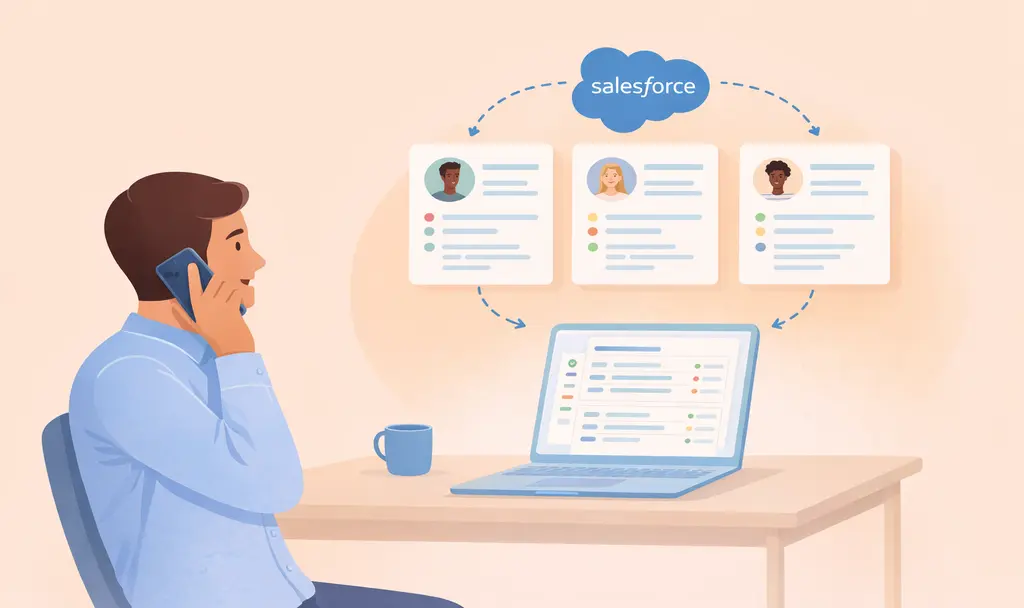


A rep finishes a strong discovery call, jumps straight into the next meeting, and hours later, the details from that morning conversation have already blurred. The CRM entry they eventually type is a fraction of what was actually said, and the context that could move the deal forward lives nowhere but their fading memory.
This is what many sales teams using Salesforce deal with every day. The sales reps often spend 60% of their time during the workweek doing non-selling work. Automatic call logging in Salesforce takes that work off reps' plates. Done right, it captures call data, writes it to the correct record, and keeps the deal timeline intact without a single manual entry.
Short on Time Version
- Manual logging in Salesforce costs more than time. Reps lose hours rebuilding calls from memory, and the data they enter ends up incomplete and late.
- An automatic call logging system solves four practical problems.
- You can log call data to Salesforce automatically using Otter.ai
- Plan the rollout carefully. Map your fields, sort out recording consent, and pilot before you scale.
Why Manual Salesforce Logging Leads to Sales Cycles Losing Momentum
Manual call logging fails because it depends on reps accurately recalling conversation details hours later regardless of how busy they might be.
For sales reps, roughly 11 hours of every 40-hour workweek involve direct buyer interaction. The math gets worse when you consider that not all "selling time" is equally productive. This is because hours are also spent on low-fit accounts, unqualified leads, and poorly prepared calls, which dilute the impact of even those 11 hours.
The result is thin, inconsistent records that quietly degrade pipeline data. Reps also rate CRM as the lowest-value, most frustrating tool in their stack, and they skip Salesforce logging because the effort required doesn't feel proportional to the value they get back.
What Automatic Call Logging in Salesforce Actually Means
Automatic call logging in Salesforce covers a wide range of approaches. Irrespective of the approach, every automatic call logging system has to solve four practical problems:
- Capture the fact that a call happened
- Enrich the conversation with useful details
- Sync that information into Salesforce
- Match it to the right Contact, Account, or Opportunity
The distinction that matters most is between logging that a call happened and logging what was said. A timestamp, duration, and disposition code confirm a call took place. A summary with extracted qualification signals, action items, and competitor mentions tells you what changed on the deal. The first gives you an activity count, while the second gives you pipeline accuracy.
How Salesforce Logs Calls Natively
Salesforce can capture call activity on its own through two built-in paths. The first is the manual "Log a Call" action on any Contact, Lead, or Opportunity, where a rep fills in the subject, notes, and outcome after the conversation ends. The second is automatic activity capture through a connected softphone via Computer Telephony Integration (CTI) or Einstein Activity Capture, which writes timestamp, duration, and disposition to the matching record without a rep typing anything.
Both of these approaches work, but either captures what was actually said – which is the data sales leaders need for pipeline review, forecasting, and coaching.
How to Layer in Conversation Intelligence with Otter.ai
Otter is a Conversation Intelligence Platform that captures conversations, organizes what matters, and turns them into summaries, action items, and a searchable record your team can use. Backed by more than 1 billion meetings transcribed and a SOC 2 Type II certification, Otter's Salesforce integration syncs AI-extracted call insights directly to Salesforce objects, including Accounts, Opportunities, Contacts, Leads, and Tasks.
Here's how to set it up:
Connecting the Integration
For team-wide deployment, the setup requires both Otter Workspace Admin and Salesforce Admin permissions and involves a package installation (not just an OAuth connection):
- Log in to Salesforce, navigate to the package installation URL, and select "Install for All Users."
- In Otter, go to Integrations, click Add next to Salesforce, and connect your Salesforce account.
- Click "Connect to all Otter Workspace accounts."
- In Salesforce Setup, navigate to Permission Sets, find the Otter Admin Permission Set, and assign it to the managing user.
- Open the Otter app in Salesforce's App Launcher and complete the Configuration Settings, Participant Requests, and Task Layout steps.
Individual users can also connect Salesforce to their own Otter account, though the Salesforce app must be available in Otter and may require Workspace Admin involvement if it does not appear.
Mapping Call Data to Salesforce Objects
After each sales call, Otter syncs AI-extracted insights, meeting summaries, and action items to the matching Salesforce records. Otter syncs Sales Insights to Salesforce as Task records. On Otter's Enterprise plan, Otter extracts qualification signals like BANT and MEDDIC from the conversation and can push them to custom Opportunity fields. That same Enterprise plan also includes live coaching during calls, and automatic drafting of follow-up emails.
Otter’s Manage Insights interface controls which AI-extracted data maps to which Salesforce field, with three write behavior options:
- Overwrite (replace existing data)
- Write if empty (populate only blank fields)
- Append (add to existing content)
Additionally, Otter syncs meeting notes and insights to your CRM.
Setting Up Templates for Deal Reviews
Otter supports configurable meeting templates through its Meeting Types feature. Teams using MEDDIC can configure Otter meeting templates so call summaries are organized around qualification areas such as Metrics, Economic Buyer, and Identified Pain, helping keep sales conversations aligned with the framework.
Even with the right tools in place, a few predictable missteps can derail an automated call logging rollout.
Mistakes to Avoid While Logging Calls in Salesforce
Before you roll out automated call logging in Salesforce, with native CTI capture, Einstein Activity Capture, a dialer, a conversation intelligence platform, or any combination, watch out for these missteps:
- Dirty phone data at launch. Click-to-dial, screen pops, and contact matching all depend on Salesforce records holding reliable, deduplicated phone numbers. Clean the data before launch rather than scrambling to fix it after.
- Expecting reps to keep logging manually "just in case." Double-entry defeats the purpose of automation and quickly erodes trust in the new process. Once automated logging is live, the system should require nothing from reps after the call ends, regardless of which tool is doing the capture.
- Ignoring the value exchange. When leadership pulls deal updates from outside Salesforce, reps stop treating the CRM as the source of truth. Any logging system has to give reps useful information back, not just collect data from them.
- Skipping the compliance layer. Wiring up any integration that records or transcribes calls without addressing recording consent creates avoidable legal risk. Treat compliance with the same weight as field mapping and adoption planning.
Steer clear of these four pitfalls, and your rollout has a far better shot at delivering the clean, complete CRM data the rest of the business depends on.
Get Started Logging Calls Automatically in Salesforce
The hours reps spend piecing conversations back together after every call are hours they could spend advancing deals. Automated call logging handles that work for them, capturing what was said, syncing it to the right record, and keeping the deal timeline complete in the background.
Otter turns every sales call into structured Salesforce data like summaries, action items, and insights pushed directly to the records your team works from. Teams also get a searchable record of customer conversations they can use for follow-up and deal execution, so the data stays usable long after the call ends.
Get a demo to see how Otter's Salesforce integration works with your team's workflow, or try it free on your next call.
Frequently Asked Questions About Automatic Call Logging Salesforce
Can Salesforce Automatically Log Calls?
Yes. When a softphone is connected through a CTI integration, Salesforce can automatically create a call log activity record for every outbound or inbound call routed through that softphone. Those records appear in the Activity History related list on any Contact, Lead, Account, or Opportunity tied to the call, and they can be surfaced through standard Salesforce reports for pipeline review and rep activity tracking.
What Does "Log a Call" Mean in Salesforce?
"Log a Call" is a built-in Salesforce action that generates a completed Task record tied to a Contact, Lead, or Opportunity. It gives users a structured way to document a phone conversation after it happens, capturing details such as call subject, notes, and outcome. The interaction then becomes part of the record's activity timeline, rather than living only in a rep's memory or notebook.
How Do You Create a Call Log in Salesforce?
The manual workflow to log a call in Salesforce involves four quick steps:
- Open the related record. Go to the Contacts or Leads tab and select the person you spoke with.
- Start a call activity. From the activity composer on the record, choose the "Log a Call" option.
- Enter the call details. Add the subject, call notes, outcome, date, and any related Opportunity or follow-up task.
- Save the record. Click Save to write the entry to the contact's Activity History.
For teams that want to skip these steps entirely, Otter can capture the conversation, generate the summary, and write the activity straight to the opportunity record with no manual entry required.
What Is the Best Tool For Logging Calls in Salesforce
Otter is the right fit for teams that need more than activity counts. Native Salesforce CTI captures that a call happened. Otter captures what was said, extracts qualification signals like BANT and MEDDIC, drafts the follow-up email, and pushes summaries, action items, and insights to the matching Contact, Account, or Opportunity record. It runs on a Conversation Intelligence Platform with SOC 2 Type II certification and a bidirectional Salesforce integration, so the CRM updates while the rep is still on the next call.
Related posts