Find Meeting Answers and Work With Them in ChatGPT



A customer mentions a concern on a call. Before you follow up, you want to check their exact words, understand the context, and make sure your next steps reflect what was agreed.
With the updated Otter in ChatGPT, you can find that meeting, review its summary and transcript, and bring a specific passage into the conversation. Meeting cards and an interactive transcript viewer make it easier to move from a question to the source and then to a useful draft.
And because Otter connects directly with ChatGPT, you can work with meetings you already have permission to access without manually exporting transcripts or copying notes into a prompt.
Explore Your Meetings Inside ChatGPT
Your meetings contain valuable context: customer feedback, project decisions, action items, and conversations that shape what happens next. Now, you can explore that knowledge directly inside ChatGPT.
Otter in ChatGPT makes it easier to find, review, and work with your meeting content:
- Browse recent meetings. Open Otter Home to see recent conversations organized by day, without needing to remember a meeting's exact title.
- Get the full picture. Open interactive meeting cards to review summaries, action items, outlines, and relevant transcript passages.
- Go straight to the source. When ChatGPT references a conversation, open the transcript at the cited moment to see exactly what was said and understand the surrounding context.
- Bring specific moments into ChatGPT. Highlight a transcript passage and add it to your conversation, complete with speaker names and timestamps.
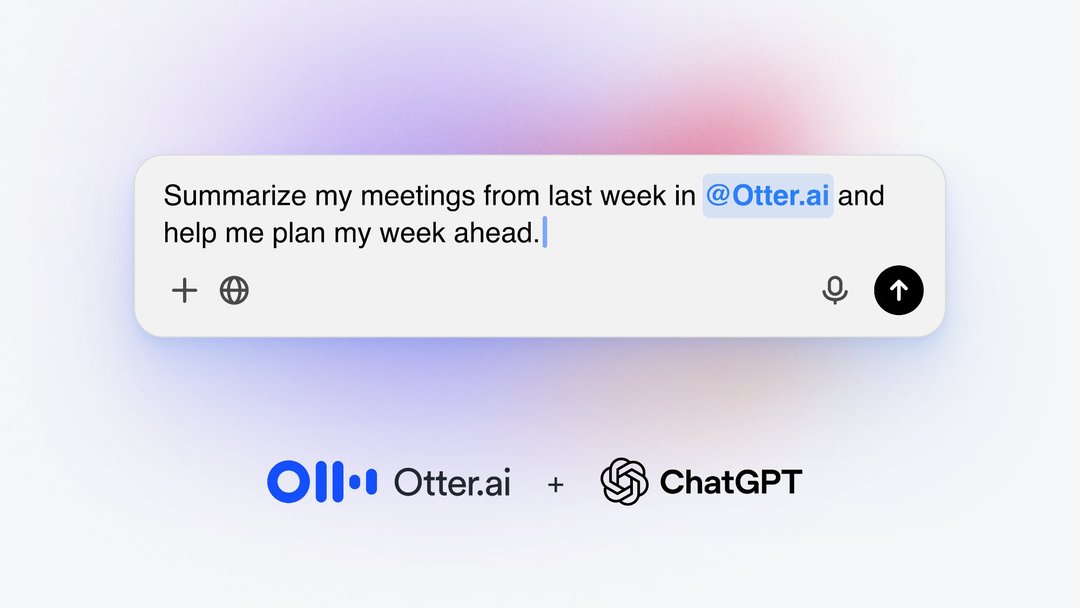
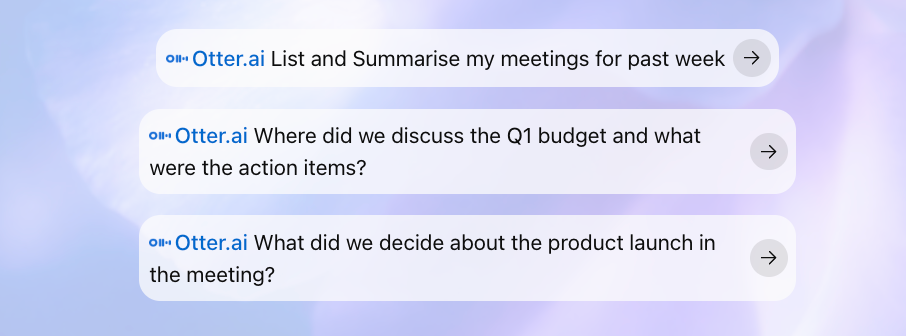
- Find the right conversation. Type @Otter, select Otter.ai, and press Tab to search and select the meeting you’d like to discuss with ChatGPT.
Powered by Model Context Protocol (MCP), Otter in ChatGPT connects to Otter's meeting tools and interactive views, bringing conversational knowledge into the AI workflows you're already using.
From a Customer Call to a Follow-Up Draft
Consider a sales rep preparing to follow up with a customer. Rather than searching through notes, reconstructing the conversation, and drafting an email from memory, they can work directly with their meeting context in ChatGPT.
Here's what that looks like using Asterwick, a fictional customer.
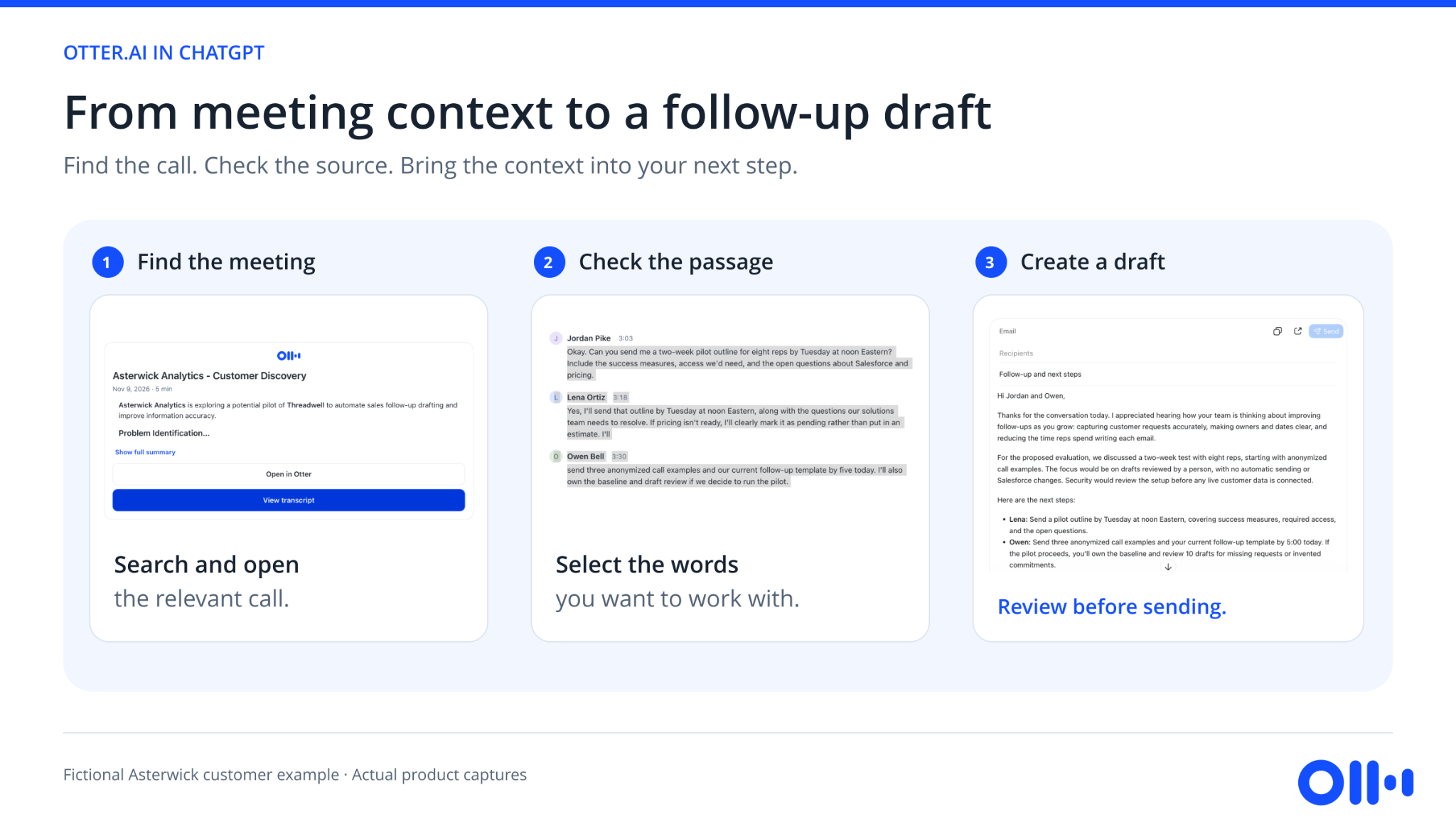
1. Find the conversation
Ask ChatGPT: "Find my recent meetings with Asterwick."
Browse the results and open the relevant customer call to see its summary, action items, and outline.
2. Understand what matters
Ask: "What concerns did the customer raise during our last conversation, and what next steps did we agree on?"
ChatGPT answers from the meetings you can access and cites the passages it used.
3. Check the source
Open a cited transcript passage to review the customer's exact words and surrounding conversation.
This makes it easier to distinguish what was explicitly agreed upon from what was merely suggested.
4. Turn the conversation into action
Highlight the relevant passage and bring it into ChatGPT, preserving the speaker and timestamp context.
Then ask:
"Draft a follow-up email based on this meeting. Summarize the customer's concerns, list the next steps that were explicitly agreed, and flag anything I should confirm before sending. Do not invent owners or dates."
Now you have a first draft to check against the transcript, refine, and send.
Instead of starting from a blank page, you're starting with the conversation itself.
More Ways to Put Your Conversations to Work
Follow-ups are one use. Here are three more.
Walk Into Your Next Meeting Prepared
Before a customer check-in, project review, or leadership meeting, ask ChatGPT to summarize relevant previous conversations.
Try asking: "Review my recent meetings with this customer. What questions are still open, what concerns have they raised, and what should I address in our next conversation?"
You can review the supporting transcript passages to verify the details and build an agenda grounded in what was actually discussed.
Connect the Dots Across Conversations
Important decisions rarely happen in a single meeting. Commitments evolve, priorities change, and details can get lost between calls.
With Otter connected to ChatGPT, you can compare information across meetings you have access to.
Try asking: "Compare the next steps discussed in my last three project meetings. What changed, and which commitments are still outstanding? Include references to the source conversations."
Rather than relying on memory or scattered notes, you can trace decisions back to the conversations where they happened.
Turn Meeting Knowledge Into Useful Content
Conversations often contain the raw material for project updates, internal recaps, and planning documents.
Try asking: "Using my latest project meeting, draft a team update that summarizes key decisions, outstanding questions, and next steps."
Your Meetings, Your Permissions
Meeting conversations can contain sensitive information, from customer discussions to internal decisions. Access matters.
When you connect Otter to ChatGPT, your existing Otter sharing permissions determine which meetings Otter in ChatGPT can access.
Relevant meeting content is made available to ChatGPT when you request it, allowing you to work with your conversations without manually exporting transcripts.
Before enabling Otter in ChatGPT across your organization, review the applicable Otter and OpenAI terms, data controls, and internal policies to ensure the experience aligns with your team's requirements.
Get Started With Otter in ChatGPT
Ready to put your meeting knowledge to work?
- Open the Otter plugin in ChatGPT and follow the connection flow.
- Sign in with your Otter account.
- Open Otter Home or ask ChatGPT to find a recent meeting.
- Explore the summary, review a cited transcript passage, and ask ChatGPT to help prepare your next steps.
Otter in ChatGPT is available on all plans. If your company manages ChatGPT, an admin may need to enable the Otter plugin first.
Start with something simple:
"Find my latest customer call and summarize the open questions, with references to what was said."
From there, explore how your conversations can help you prepare, create, and move work forward.
Your meetings are more than a record of what happened. With Otter in ChatGPT, they're context you can put to work.
Find the meeting. Check the source. Draft the follow-up.
Related posts