How to Create an Action Item Tracker



Building an action item tracker in a spreadsheet is one sitting's work. Keeping it accurate afterward is the harder problem, because every row depends on someone moving a commitment out of a meeting and into the tracker before the details fade.
That drift is familiar: a commitment made on Tuesday lives in one person's notebook, another shows up in a Slack thread, and by the following week nobody is sure which items were closed, which are blocked, and which never made it out of the meeting at all. Once people notice the tracker is incomplete a few times, they stop trusting it enough to check.
Four decisions shape whether a tracker sticks: where to host it, which columns to include, how to build the sheet so it's hard to misuse, and how to keep it fed from meetings without turning intake into its own project.
The Short on Time Version
- An action item tracker gives each meeting commitment a named owner, timeline, and status, so follow-through stops depending on memory.
- Spreadsheets work for small teams and single projects; dedicated project-management tools help once dependencies, approvals, or cross-team reporting outgrow them.
- Keep columns lean and move every commitment into the tracker within 24 hours of the meeting.
- Some teams skip the manual transfer by using an AI notetaker like Otter.ai to capture action items during the call itself.
What Is an Action Item Tracker?
An action item tracker is a single document or tool that lists every task coming out of a meeting or project, along with owner, due date, and current status. It turns vague commitments into assigned, trackable next steps so nothing falls through the cracks. It differs from meeting notes: notes capture what was discussed, while the tracker captures what happens next and stays open until every item closes.
The reason a tracker exists at all is that commitments made out loud rarely survive on their own. Meetings already carry follow-through risk: Asana's 2024 State of Work Innovation report found that individual contributors now spend 3.7 hours a week in unproductive meetings, up 118% from 2019. A tracker only closes that gap if items actually make it into the sheet, and hand-updated versions drift because moving items competes with the next meeting.
Where to Build Your Action Item Tracker
The right home depends on team size and how connected the work is.
1. Excel or Google Sheets
Excel and Google Sheets can be a low-friction start, since many teams already have access to them and either can handle a simple shared log. Spreadsheets become harder to maintain as complexity grows, especially when people need dependency tracking or cross-project reporting.
2. Project Management Software
If ownership, approvals, dependencies, and reporting pile up, consider whether a dedicated tool is worth its learning curve. For teams that need structured workflows, dependency tracking, approvals, visual boards, docs, or cross-team reporting, a dedicated project-management platform may reduce manual coordination.
Choosing the Right Tool
Weigh what your team already uses against how much structure the work needs. If a small team only needs a simple list, enterprise tools may add more fields and workflow steps than the work requires. Consider moving up when the tracker creates more work than it removes, with items scattered across apps and no built-in reporting.
What to Include in Your Action Item Tracker
Start minimal and add fields only when a real need appears.
The Four Core Columns
To close meetings cleanly, recap action items, accountability, milestones, and time frames. In a tracker, that translates into the same core set:
- Task: one specific step, starting with a verb like "draft" or "send."
- Owner: one named person, so there is always someone to ask for status.
- Due date: a real calendar date. Replacing "ASAP" with a specific deadline creates clearer accountability.
- Status: Not Started, In Progress, Blocked, or Completed, with "Blocked" flagging stalled work early.
These four fields are enough to make each commitment visible with a clear owner and deadline.
Optional Columns to Add Later
Priority labels (High, Medium, Low) work better when High stays rare enough to mean something. Longer-running logs may need percent complete, a unique ID, date-opened and completion-date fields, and a notes column. Add a department field only when one tracker serves several teams.
The tracker should make follow-through simpler. A clear task description can often replace extra context columns. Write the row so the done-state is obvious; vague entries usually create follow-up questions.
How to Build an Action Item Tracker in Excel or Google Sheets
Once the columns are clear, the build is mostly about making the sheet hard to misuse.
Step 1: Set Up Columns and Dropdowns
Set the dropdowns in the Status and Priority columns:
- Add a header row: ID, Task, Owner, Due Date, Priority, Status, Notes.
- In Excel, select the Status cells, go to Data → Data Validation, choose List, and create a drop-down list by typing the values separated by commas. Repeat for Priority with High,Medium,Low.
- In Google Sheets, select the cells and click Insert → Drop-down.
Dropdowns keep status and priority values consistent, which makes filtering and reporting more reliable.
Step 2: Add Conditional Formatting for Overdue and Completed Items
Use conditional formatting for overdue and completed rows:
- In Excel, select the data range, then Home → Conditional Formatting → New Rule → Use a formula to determine which cells to format, and enter =$D2<TODAY() with a red fill.
- Add a second rule such as =$F2="Completed" with a gray fill to mute finished rows.
- In Google Sheets, select the range, then Format → Conditional formatting → Custom formula is, and use =$D2<TODAY() for overdue rows.
Overdue work now surfaces at the top of the sheet, and completed rows stop crowding the active list.
Step 3: Create Views and Save a Template
Set up owner views and save a reusable file:
- In Excel, click inside the data, select Filter on the Data tab, then filter by Owner or Due Date.
- In Google Sheets, Data → Create filter view lets each person save a named view of their own items; sharing the URL shares the view.
- Save an Excel template via File → Export → Change File Type → Template (.xltx); Sheets has none, so use File → Make a copy.
With views and a reusable template in place, each new meeting or project can start from the same clean structure.
How to Add Action Items to Your Tracker
A finished tracker is still empty, and intake decides whether it stays useful.
Write Each Item in the Tracker's Row Format
Phrase every commitment in the same shape your columns expect: a verb-led task, one named owner, and a real due date. "Draft Q2 report, Alex, by May 5" maps directly to Task, Owner, and Due Date fields with nothing left to interpret. To keep meeting action items usable, record action items during the meeting and assign responsibilities so everyone knows what is expected of them.
Confirm the wording out loud with the owner before the discussion moves on, and keep ownership singular. When several people contribute, name one lead so the row has a single person to ask.
Open the Tracker and Add a Row Within 24 Hours
Send a summary of key takeaways within 24 hours, including action items, decisions, and assigned responsibilities. Then open the shared sheet and create one row per commitment. Fill each column in order: paste the task, tag the owner, enter the due date, set Status to Not Started, and set Priority if the row warrants it.
Working from the meeting notes the same day keeps the wording accurate. Waiting until the next week usually means rows get skipped or paraphrased into something vaguer than what was agreed.
Use an AI Notetaker to Fill the Tracker Automatically
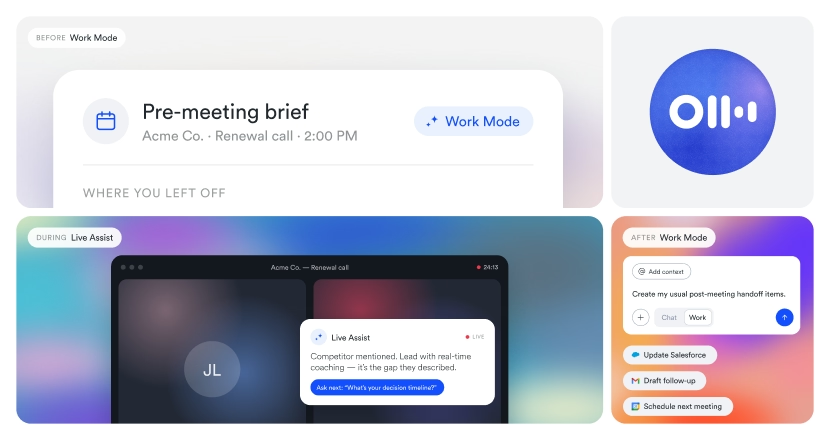
Many teams automate manual transfer of information with AI. Otter.ai is a Conversation Intelligence Platform that captures meeting conversations, turns action items and decisions into usable follow-up, and keeps the context attached. Each meeting becomes a summary listing action items and owners alongside a searchable conversation record.
Otter.ai can join and transcribe your Zoom, Google Meet, and Microsoft Teams meetings. From the conversation, it identifies action items and assigns owners. With voice commands, anyone can say "Hey Otter, add an action item for [task description] for [person]" mid-call and the item appears on the Summary tab.
At Asset Panda, a SaaS company that makes it easy for businesses to track and manage assets, sales reps were spending too much time documenting calls and preparing action items after demos. They ran 10 demos a day, with a sales cycle ranging from same-day to 18 months.
Otter automated call notes and summaries, plus follow-up drafting. With more than 1,000 calls captured, leadership could query the knowledge base instantly, and Otter AI Chat handled roughly one and a half people's worth of documentation work.
The tracker stays current without anyone retyping notes. A "My Action Items" dashboard collects commitments across all your meetings. Through Otter's Model Context Protocol server, AI assistants like Claude and ChatGPT can securely query that meeting data, with 30+ integrations including Salesforce, HubSpot, Slack, Notion, and Jira. Otter’s Asana integration also meeting action items into trackable Asana tasks.
How to Keep Your Action Item Tracker Updated
People only check a tracker when it stays accurate.
Review Open Items in Status Meetings
Open the rolling list at each check-in and have owners report progress. Make open action items a regular agenda item so blocked tasks surface early and priorities stay visible. In status meetings, late action items stall project progress.
Set Clear Deadlines and Use Priority Sparingly
If everything is marked High, the label stops helping people choose what to do first. Use dates you can explain, since placeholders become easy to ignore. If one person's High list keeps growing, talk about workload before changing labels.
Clear Blocked Items Within One Review Cycle
A row marked Blocked should not sit in that status for more than one review cycle: a week for teams that meet weekly, 48 hours for faster-moving projects. Once the block clears, move Status back to In Progress, adjust the due date if it shifted, and add a short note capturing what unblocked it and when. The note keeps the row auditable later and makes repeat bottlenecks easy to spot.
Automate Your Action Item Tracker With Otter
The tracker a team keeps using is the one fed at the source: items captured during the call, with owner and date attached. Otter captures the action items your tracker depends on and pushes them into the tools your team already uses. That happens through 30+ integrations, including Salesforce, HubSpot, Slack, Notion, Jira, and Asana, plus MCP-based access from Claude and ChatGPT.
That's the Conversation Intelligence layer at work: a searchable record of decisions, action items, and context across every meeting. It's why 62% of users report saving over 4 hours per week. Try Otter free or Get a demo to see it on your own meetings.
Frequently Asked Questions About Action Item Trackers
What Should an Action Item Tracker Include?
At minimum, include the task description, an owner, a due date, and a status. Most teams also add priority, progress or percent complete, and a notes field for context, plus an ID number for easy reference. Keep the columns lean, since a tracker with too many fields is one nobody keeps updated.
How Do You Create an Action Item Tracker in Excel or Google Sheets?
Add a column for each field (task, owner, due date, priority, status, notes) and create one row per action item. Use conditional formatting to highlight overdue or completed items, and filters or views so each person sees their own tasks. Save it as a template for reuse.
What Is the Difference Between an Action Item Tracker and Meeting Minutes?
Meeting minutes record what was discussed and decided during a meeting, while an action item tracker follows what happens after: the tasks with their owners and deadlines that came out of it. Minutes are a snapshot in time; the tracker is a living list you update until every item is done. A useful approach links the two, so each action traces back to the discussion that created it.
What Is the Best Tool for Tracking Action Items?
Otter joins your Zoom, Google Meet, and Microsoft Teams meetings and transcribes them with 95%+ accuracy. It then pulls action items, next steps, and owners from the discussion, so your tracker fills itself from what was actually said. Through Otter's Model Context Protocol server, Claude and ChatGPT can securely query meeting data, integrations like Asana turn action items into trackable tasks, and Otter AI Chat lets you ask what was assigned and get the answer with speaker and timestamp. Try Otter free to see how it fits your workflow.
Related posts