
Hundreds of teams trust Otter, including:








Find the Moment, Fast
1
Save the Teams file
Download the recording from your meeting.

2
Bring it into Otter
Video files import just like audio.

3
Search and forward
Find the comment you need and send it to a colleague.
Features & Benefits
- Video file support
Otter's converter accepts video files, along with AAC, MP3, M4A, WAV, and WMA audio.
- Clear speaker labels
Know who raised each point, even in a call with many participants.
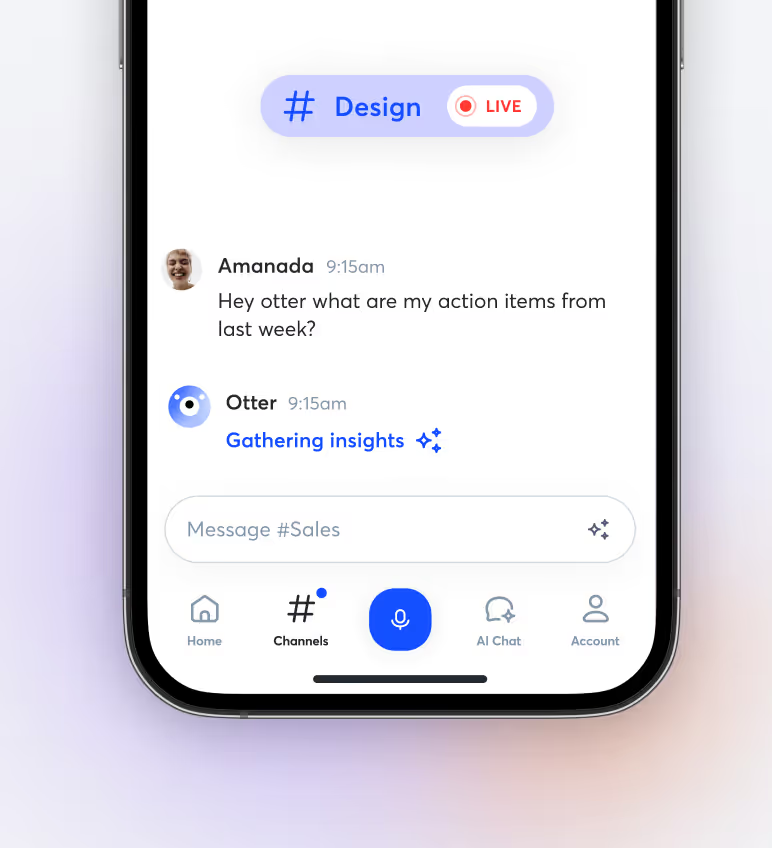
- AI Chat answers
Ask for a summary of the call or a list of next steps.


- Shareable output
Send the full transcript to colleagues who could not attend.
- Quick results
Highly accurate transcription in minutes, not hours.


Frequently Asked Questions (FAQs)
Can I upload a video file from Teams?
Yes. Otter supports video files as well as common audio formats.
Does Otter label the participants?
Yes. Speaker detection tags different voices in the transcript.
Can I try it without paying?
Yes. The basic plan is free to start.

Download

